Install Sort Feed in desktop Chrome
This page covers prerequisites and the official install path. For the full numbered first-use tutorial, use Get Started—docs do not duplicate that guide.
Scope
Desktop Google Chrome on Windows, macOS, or Linux. TikTok and Instagram web pages you can already open.
Prerequisites
- Desktop Google Chrome installed and updated.
- Ability to install extensions from the Chrome Web Store.
- A TikTok or Instagram account session only if the page you research requires login.
Steps
- 01
Open the official listing from sortfeed.io
Use the Add to Chrome / Chrome Web Store CTA on sortfeed.io so you install the official Sort Feed extension, not a lookalike.
- 02
Confirm the extension name and publisher
On the Chrome Web Store listing, confirm you are installing Sort Feed for TikTok and Instagram before you continue.
- 03
Pin Sort Feed in Chrome
After install, pin the extension from the Chrome extensions menu so the icon stays available on supported pages.
- 04
Continue to Get Started for first use
Open the Get Started guide for the complete first-sort walkthrough, FAQ, and next-page links.
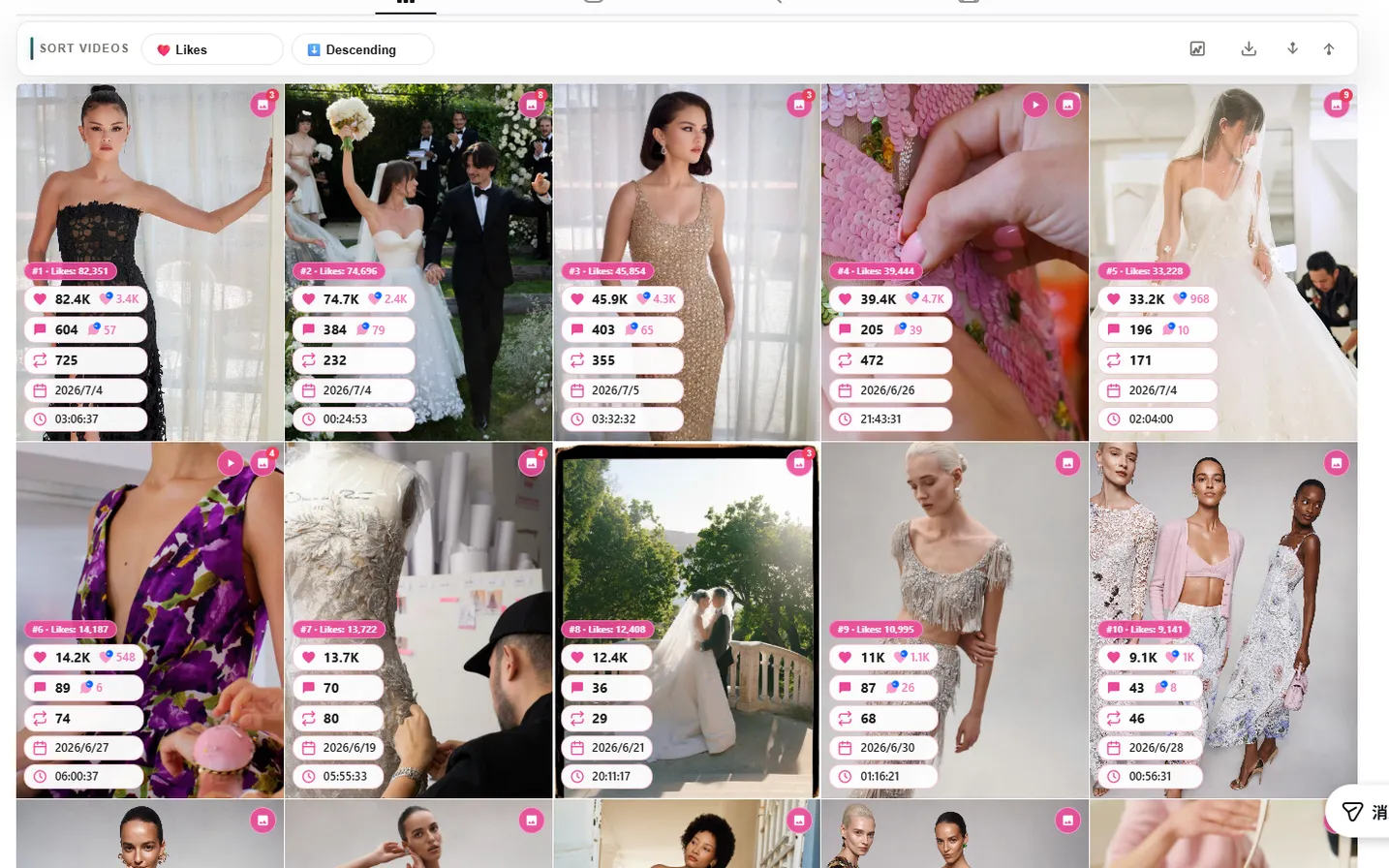
Expected result
Sort Feed appears in your Chrome toolbar and is ready on supported TikTok or Instagram pages in desktop Chrome.
Common errors
I cannot find the extension after install
Open chrome://extensions, confirm Sort Feed is enabled, then pin it from the puzzle-piece menu.
Store listing looks unfamiliar
Leave the page and restart from sortfeed.io. Do not install extensions that do not match the official Sort Feed listing.
Known limitations
- Mobile Chrome and in-app TikTok/Instagram browsers are not supported.
- Other desktop browsers are not supported yet.
Privacy note
Installation uses the Chrome Web Store. Sort Feed does not need your TikTok or Instagram password to install.