For a content audit, export the visible TikTok or Instagram post rows you actually reviewed. A CSV can preserve post URLs and public metrics for a teammate; it does not contain private TikTok or Instagram account analytics.
Sort Feed works on supported pages in desktop Chrome: rank a loaded grid, inspect its rows, then export the selected post data. This guide adds the audit decisions that a raw CSV cannot make for you.
Check the post export instructions if you need the exact controls before starting.
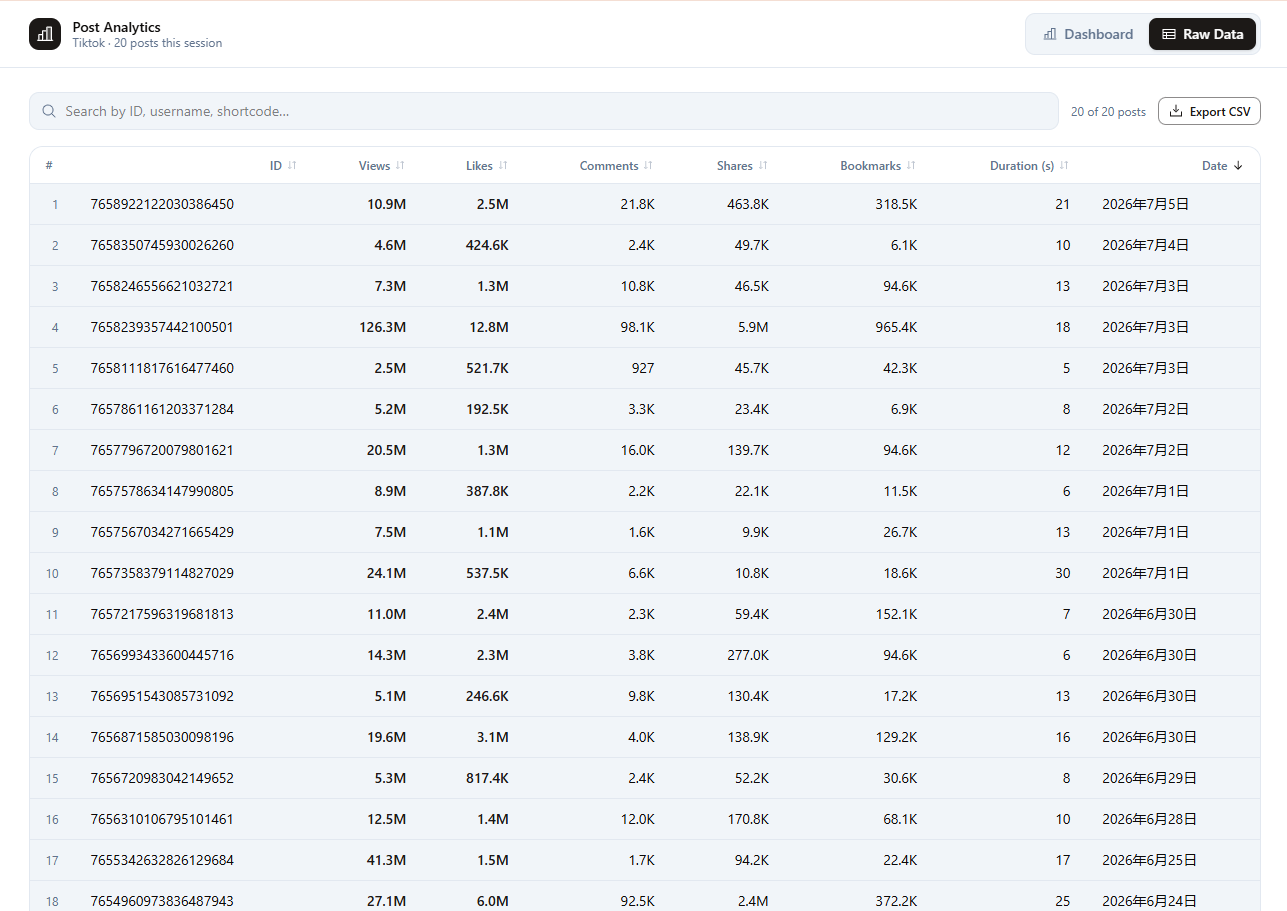
Product interface example for TikTok. The same audit method applies to supported Instagram grids; available columns depend on the open page.
When CSV export beats screenshots
Use CSV when someone else must trust your numbers:
- Client content audits with URLs and view counts
- Weekly competitor snapshots you rerun on the same handle
- Creative brief appendices listing top posts after a sort pass
- Before/after campaign reviews comparing two export files by date
Keep a screenshot when the layout itself matters. Use CSV when the reader needs row-level source URLs and counts that can be checked later.
What fields can appear in a Sort Feed export?
Availability depends on what TikTok or Instagram shows on the page you browse. Common visible fields include:
- Post URL
- Publish date (when shown)
- Views, likes, comments
- Shares or bookmarks when available
- Duration or caption text when the supported page exposes it
These are possible source fields, not a promise that every export includes every column. Always validate important findings against the live post; visible counts and platform layouts change.
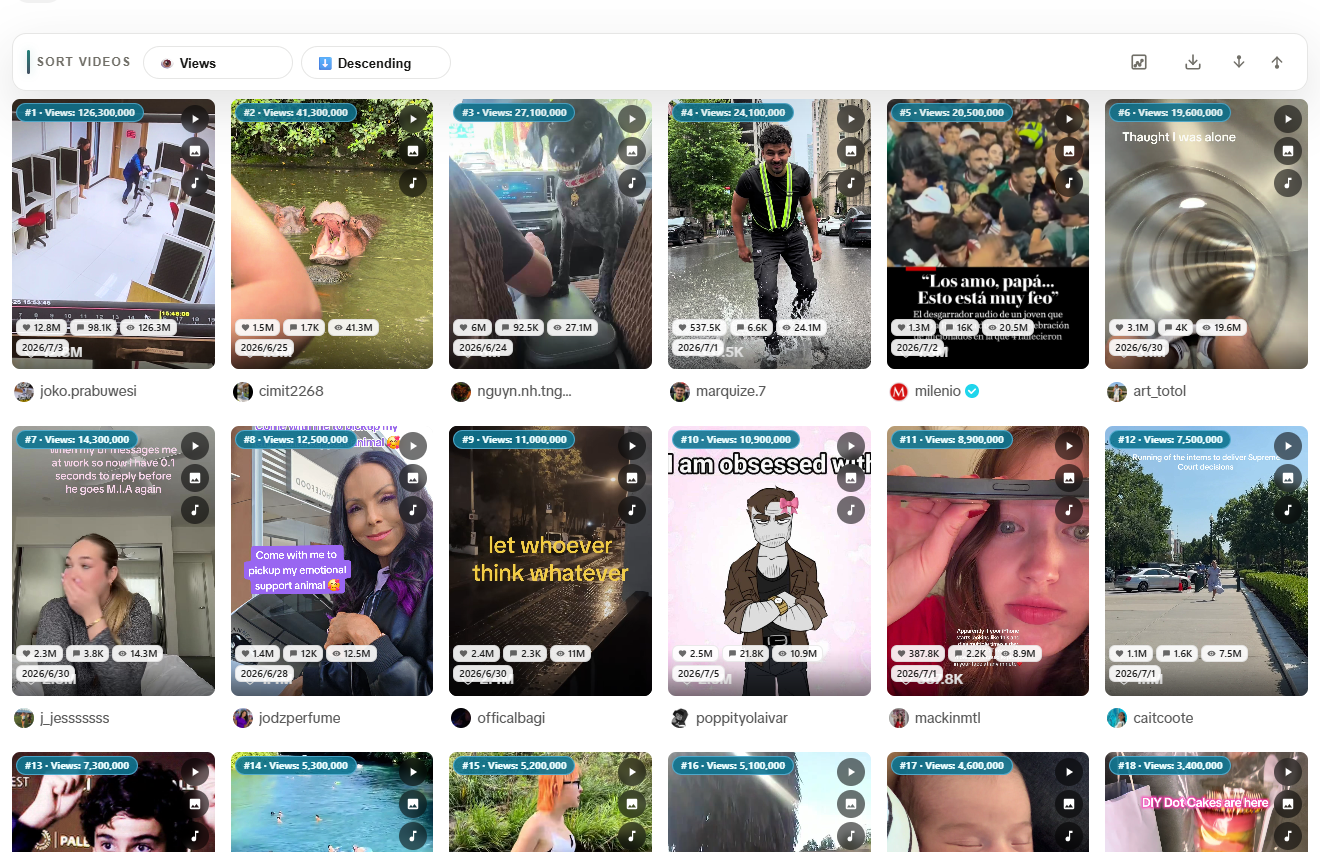
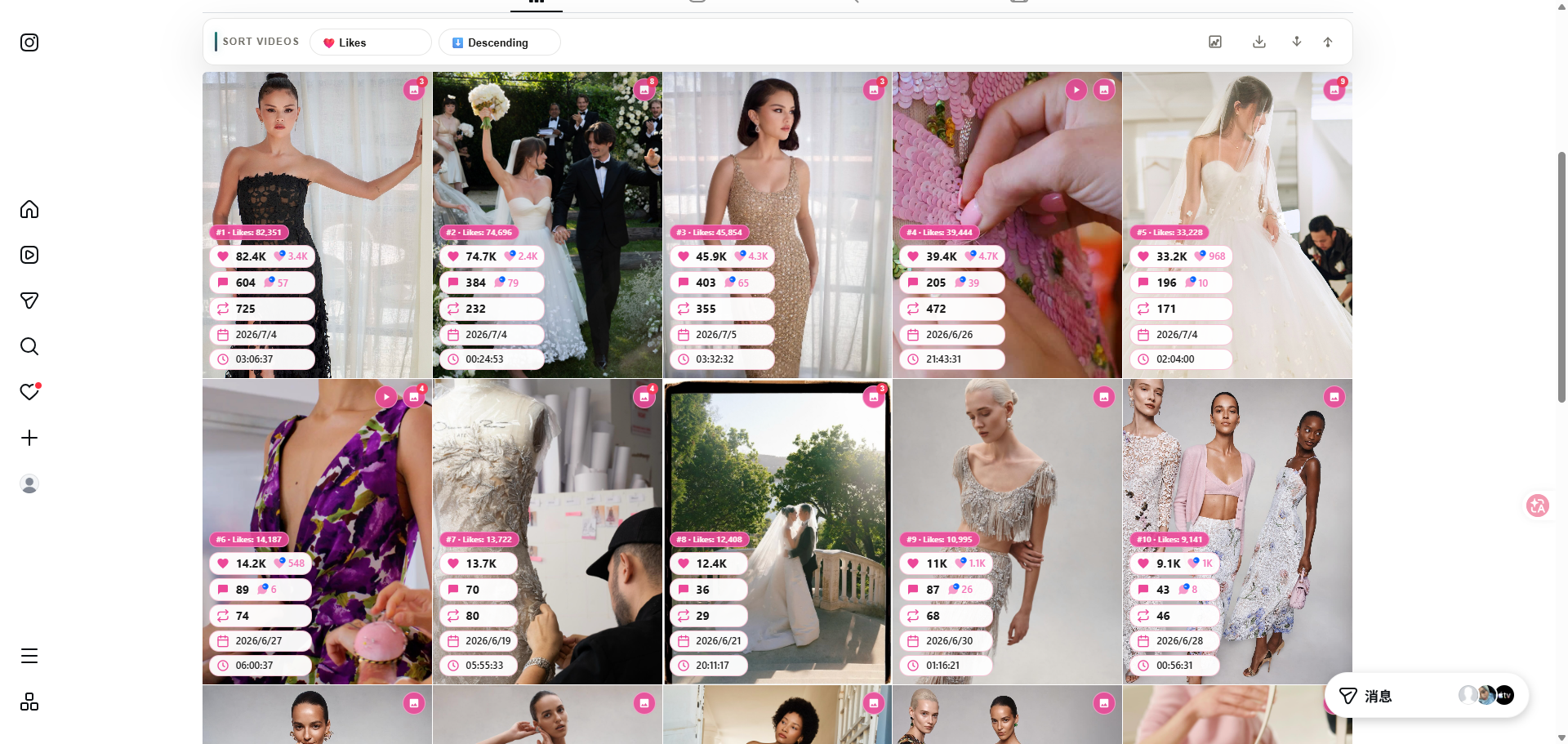
Step-by-step: export TikTok and Instagram data to CSV
1. Define the audit question
Examples:
- Which loaded Reels on one brand profile have the most visible views?
- Which TikTok posts on a chosen profile have the most visible likes?
- Which posts were published during the campaign window I need to review?
Write the question and observation date first. Choose the metric that answers it; do not use likes as a substitute for views when the conclusion is about reach.
2. Sort visible posts in Chrome
- Install Sort Feed
- Open the target profile or grid on
tiktok.comorinstagram.com - Load posts, then sort by views, likes, comments, or date
Platform guides:
3. Review raw data rows
Open the raw-data table inside Sort Feed. Confirm:
- Row count matches your shortlist size
- Values match the visible source posts you plan to cite
- URLs resolve before you send a client file
4. Export selected rows
- Keep only rows that support your audit question.
- Export the supported fields to CSV.
- Reopen the file and verify its row count, URLs, dates, and encoding before sharing it.
Name files with date, handle, and metric:
YYYY-MM-DD-account-platform-metric.csv
Content audit worksheet: add the decisions a CSV cannot contain
The exported CSV is a source snapshot. Add a separate working sheet with these columns; the last three are manual analysis, not fields Sort Feed promises to export:
checked_at,source_page_url,post_url,metric_used,visible_count,post_format,opening_hook,research_decision
| Column | Where it comes from | What to check |
|---|---|---|
checked_at, source_page_url | Your audit notes | Use one date and a clearly defined loaded grid |
post_url, visible_count | Exported row when available | Reopen a few posts and compare the displayed count |
metric_used | Your audit question | Record Views, Likes, Comments, or Date explicitly |
post_format, opening_hook | Manual post review | Watch the post before labeling its creative format |
research_decision | Your analysis | State what the team should test or investigate next |
Do not fill missing counts with zero. A metric absent from the page is not available, which is different from an observed value of zero. If you compare two exports, keep the original files and observation dates so that later changes remain traceable.
5. Optional: pair CSV with transcripts or downloads
- Hooks matter? Transcribe only the shortlisted clips whose spoken words affect the decision; see the transcription guide.
- Need a permitted media reference? Use the relevant TikTok or Instagram single-link tool for public posts you are allowed to save.
For current row and format limits, check pricing before committing to a large audit.
Content audit checklist
- Audit notes include the question, source page, and observation date
- Sort metric matches the question (views / likes / date)
- Shortlist is smaller than the full grid
- CSV filename includes date and metric
- Spot-check 3 URLs against live posts
- Manual creative labels are kept separate from exported source fields
Related guides
- Social video research workflow
- Reverse-engineer competitor strategy
- Instagram feed sorter
- TikTok feed sorter
- Instagram comment exporter
- Instagram follower exporter
- TikTok comment exporter
- TikTok follower exporter
Export your next audit from Sort Feed on the Chrome Web Store—sort first, CSV second.