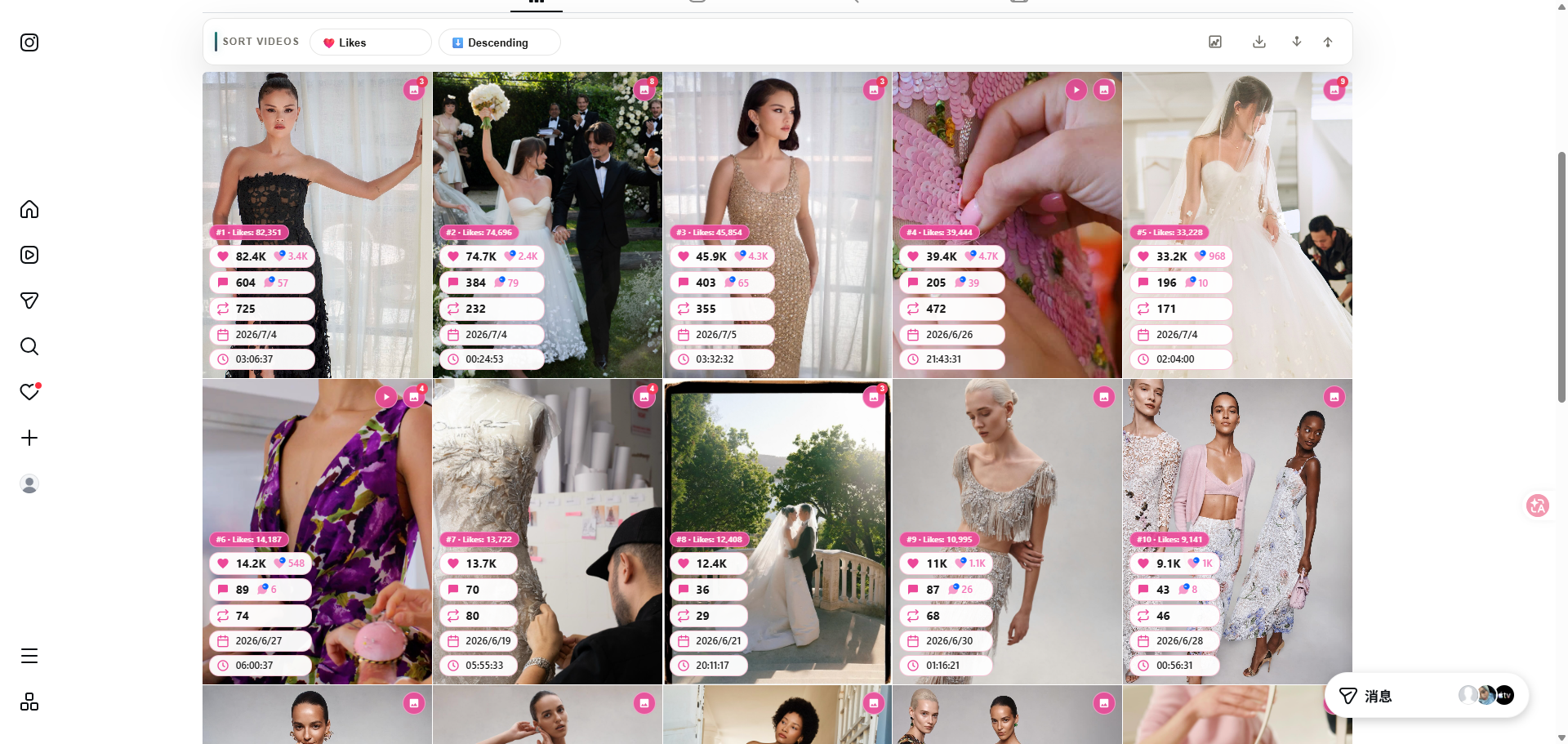
Instagram does not offer a bulk download Instagram Reels button, and saving clips one-by-one inside the app is slow for researchers, editors, and ecommerce teams building swipe files. In desktop Chrome, you can sort visible reels, pick the winners, and download selected media with the Sort Feed Chrome extension—without rebuilding your workflow in a separate downloader site.
Try Sort Feed Chrome Extension Free —sort reels by views, download selected clips, export CSV in one session.
For one public Reel or video URL, use the online Instagram video downloader. It handles a single public link; use the Sort Feed extension when you need to compare and shortlist a loaded Reels grid first.
When bulk Reels download beats screen recording
Bulk download fits research and production prep:
- Creative references: collect top-performing reels after sorting by views
- Cross-posting review: compare hooks before you repurpose on TikTok
- Client audits: keep selected files alongside exported metrics
- Editor handoffs: download only the reels that made the shortlist
Screen recordings add platform UI, compression, and extra cleanup. Downloading selected media from visible rows is faster when Sort Feed supports the page layout.
What you need before downloading
- Desktop Google Chrome
- Sort Feed installed from the Chrome Web Store
- A supported Instagram profile or Reels grid you can access in the browser
- Optional Pro plan if you need full-range download-all or exports beyond CSV —see pricing
Start with the Instagram feed sorter guide if you have not sorted reels before.
Step-by-step: bulk download Instagram Reels in Chrome
1. Open the Reels grid you want to archive
Navigate to a creator profile, brand page, or Reels tab. Scroll to load enough posts for your sample. Sort Feed works on visible, loaded tiles.
2. Sort reels by views or likes
Open Sort Feed and rank by:
| Goal | Sort by |
|---|---|
| Reach leaders | Views |
| Audience favorites | Likes |
| Fresh tests | Date |
Sorting ensures you download high-signal reels first—not random tiles from default order.
3. Select reels and download
- Shortlist the reels you want to keep
- Use the download action for selected media
- On Pro, use download all media in range when the entire visible set matters
Pair downloads with CSV export when stakeholders need URLs and metrics in the same deliverable.
Free vs. Pro for Instagram downloads
| Feature | Free | Pro |
|---|---|---|
| Sort visible reels | Latest 25 posts | Full range + custom dates |
| Download selected media | Yes | Yes |
| Download all in range | — | Yes |
| Export formats | CSV | CSV, JSON, Excel |
Check the live pricing page before large batch sessions.
Tips for cleaner Reels research downloads
- Sort before you select. Default grid order wastes download time on low performers.
- Name files with date + handle so client folders stay searchable.
- Export metrics in the same pass when you need proof of performance, not just MP4 files.
- Stay on desktop Chrome. Mobile browsers are not supported.
Social proof
Sort Feed holds a 4.8/5 rating on the Chrome Web Store (public listing, checked September 23, 2026). Researchers cite fast sorting on Instagram and TikTok as the main reason they install.
Related guides
- How to sort Instagram posts by engagement
- Export TikTok and Instagram data to CSV
- Bulk download TikTok videos
Install from Sort Feed on the Chrome Web Store and download your next Reels shortlist in one Chrome session.